Business Workflows
PDF Workflows for Modern Teams: From Editing to Secure Sharing
Well-structured PDF workflows can make document-heavy work easier to organize across teams, departments and everyday business processes.
7 min read
As a team grows, documents stop belonging to a single author. A PDF may be prepared by one person, reviewed by another, stored by a third and sent to a customer or colleague who never saw the original file. Without a simple workflow, versions multiply and people lose time reconstructing what happened.
A well-structured PDF workflow does not require a complex program. It does require agreed steps for preparing, editing, reviewing, organizing and sharing files. This article describes those steps in practical terms for document-heavy teams.
Why PDF workflows become complex as teams grow
Small teams can often manage documents by habit. Larger teams add departments, locations and handoffs. The same contract might need legal language, a commercial appendix and a signed copy for records. If each group uses a different tool or naming pattern, the next person inherits confusion.
Complexity also comes from reuse. Last quarter’s report becomes this quarter’s template. A scanned attachment is merged into a pack. Someone prints, signs and scans a page that then has to be put back in order. The PDF remains the exchange format, so the workflow has to live where the PDF lives.
Preparing documents
Preparation is the work that happens before a file is ready for others. That may include converting a source document, checking that fonts and images look correct, adding a cover page or removing draft watermarks.
Agree what “ready for review” means. A short checklist — pages complete, obvious errors fixed, file named consistently — prevents reviewers from commenting on problems that should have been caught earlier.
Editing and reviewing PDFs
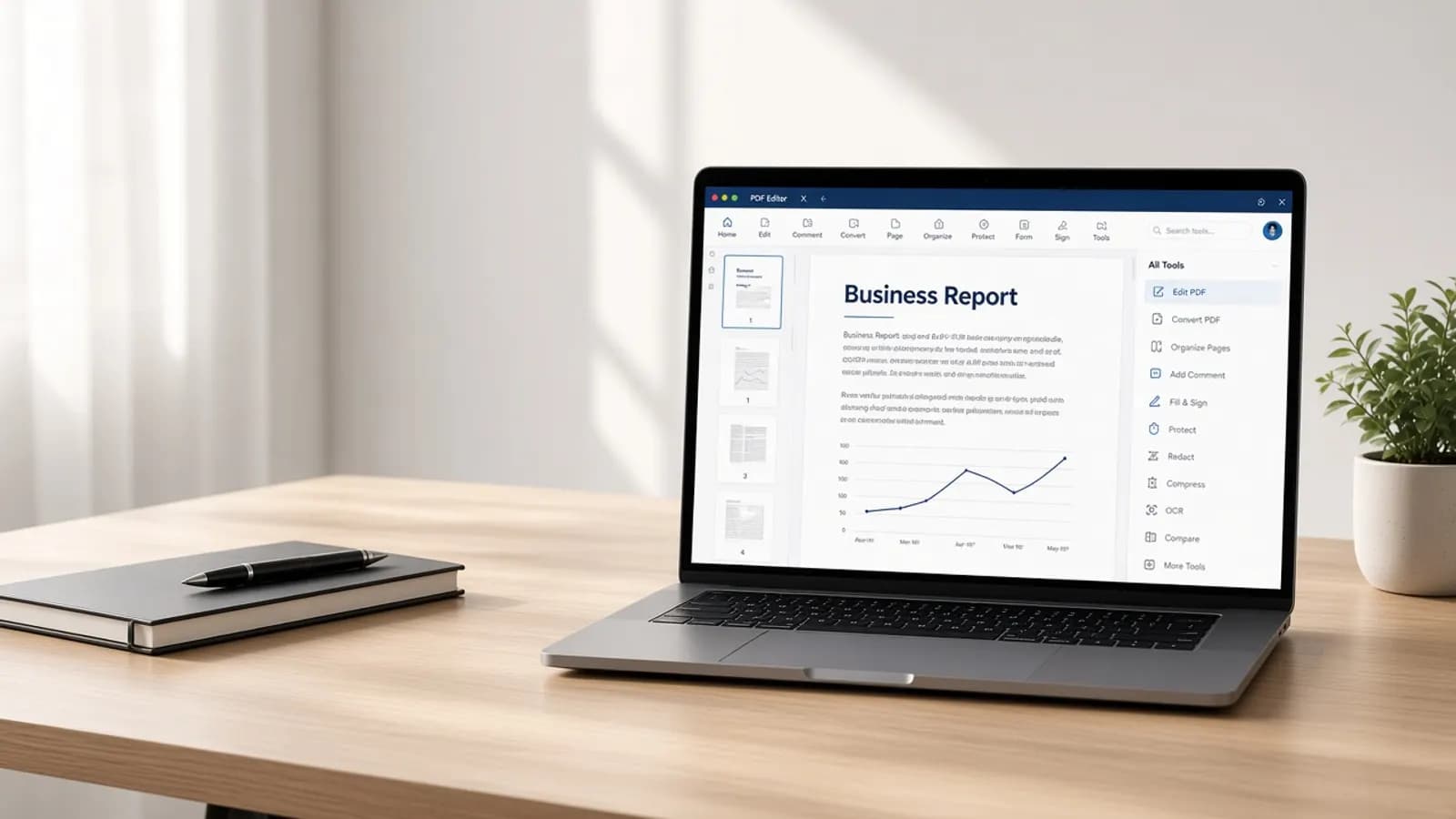
Editing covers in-place text changes, small layout fixes and adding marks that belong in the file. Reviewing covers comments, highlights and questions that should be resolved before the document is treated as final.
Keep review inside the PDF when the PDF is what recipients will see. Exporting to another format for comments and converting back often introduces layout drift. When several people comment, decide who applies the final edits so the file does not fork.
Organizing pages
Page organization is the difference between a usable pack and a pile of attachments. Teams regularly need to merge related files, split a large PDF, move an appendix or rotate a scanned page.
Do this before sharing whenever possible. Recipients should not have to guess which page is the signature page or whether an exhibit is missing. A thumbnail view helps the person assembling the file confirm the order.
Handling contracts and business documents
Contracts and commercial documents often combine narrative pages, schedules and signature blocks. The workflow should make it clear which copy is the working draft and which copy is the version that was sent or signed.
Use filenames and a simple location rule so people do not edit an outdated attachment from email. If a signature or stamp is added, store the completed file separately from the editable draft.
HR and internal documents
HR packs, policies and onboarding files are frequently PDFs because they need a stable layout. They also often contain personal information. Limit who can assemble and send those files, and avoid extra copies in personal downloads folders.
Internal documents still benefit from the same preparation and review steps. A policy that is missing a page or still marked as draft can cause more confusion than a delayed send.
Finance-related document workflows
Invoices, statements and reports travel between finance, operations and external parties. Accuracy and completeness matter, and files are often archived for later reference.
Build a habit of checking totals, dates and attachments before a PDF leaves the team. Compressing a file for email is useful when size is a problem, but not if it makes figures harder to read. Keep the working file and the sent file easy to tell apart.
Sharing documents responsibly
Sharing is part of the workflow, not an afterthought. Send the minimum file that the recipient needs. Confirm you are using the current version. If the document is confidential, follow your organization’s rules for how it may be transmitted and stored.
Password options and permission settings can add a layer of control for some files. They are not a substitute for sending the document to the right people, and they do not make a shared file risk-free. When a document no longer needs to circulate, stop forwarding the same attachment.
Maintaining organized document processes
A workflow lasts only if people can repeat it. Use consistent names, a known folder or records location, and a short description of who prepares, who reviews and who sends.
Revisit the process when a new team joins or a document type changes. The aim is fewer one-off exceptions, not a rigid system that people work around.
Practical workflow checklist
- Prepare: confirm pages, layout and filename before review.
- Edit: make in-place corrections in the PDF when that is the shared format.
- Review: collect comments in one file and assign who applies final changes.
- Organize: merge, split or reorder pages before the document is sent.
- Record: keep draft and completed copies distinct.
- Share: send the current version to the intended recipients only.
- Store: put the final file in the agreed location.
Conclusion
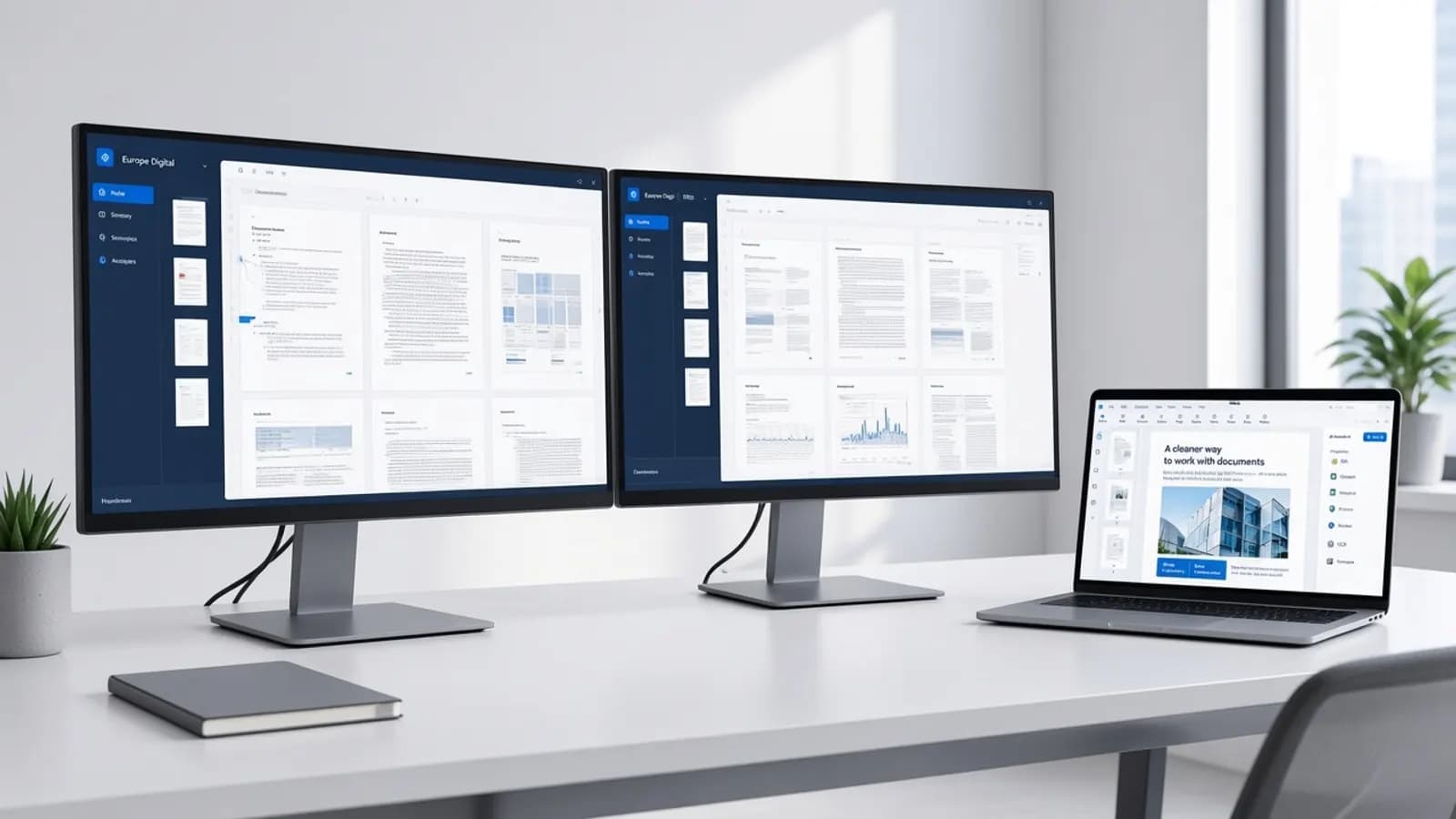
PDF workflows become manageable when teams treat preparation, editing, review, page organization and sharing as one sequence. The tools should support those steps on the desktops people already use. The process should stay simple enough to repeat.
If you want to see how Europe Digital PDF Editor can support document work for business teams, start with the business product page.