PDF Workflows
How to Choose the Right PDF Editor for Business Workflows
Understand the PDF editing capabilities that matter most when documents are part of everyday business workflows.
6 min read
PDF files sit in the middle of many business processes. Quotes, contracts, reports, onboarding packs and signed records often need to be opened, adjusted and shared without losing their layout. A PDF editor is useful when those documents are part of everyday work, not only when someone needs to make a one-off change.
This article outlines the capabilities that usually matter when teams choose a PDF editor for business workflows. It is practical product-education guidance, not a legal, security or procurement assessment.
Why PDF editing matters in business workflows
Business documents rarely stay in one system. A proposal may start in one application, travel as a PDF, pick up comments from another team and later become a signed record. If people cannot edit, review or organize that file without converting it back and forth, small delays add up.
A capable editor helps teams keep work inside the PDF when that is the format colleagues already use. The goal is fewer workarounds, clearer review, and documents that remain readable after they leave the original authoring tool.
Editing existing text and document content
Look at how the editor handles text that is already in the file. Teams often need to correct a name, update a date, replace a short paragraph or fix a heading without rebuilding the whole document.
- Can existing text be edited in place while the surrounding layout stays intact?
- Can images, simple shapes or stamps be added when a document needs a mark or visual note?
- Is it clear when a PDF is image-based and may need extra steps before the text can be changed?
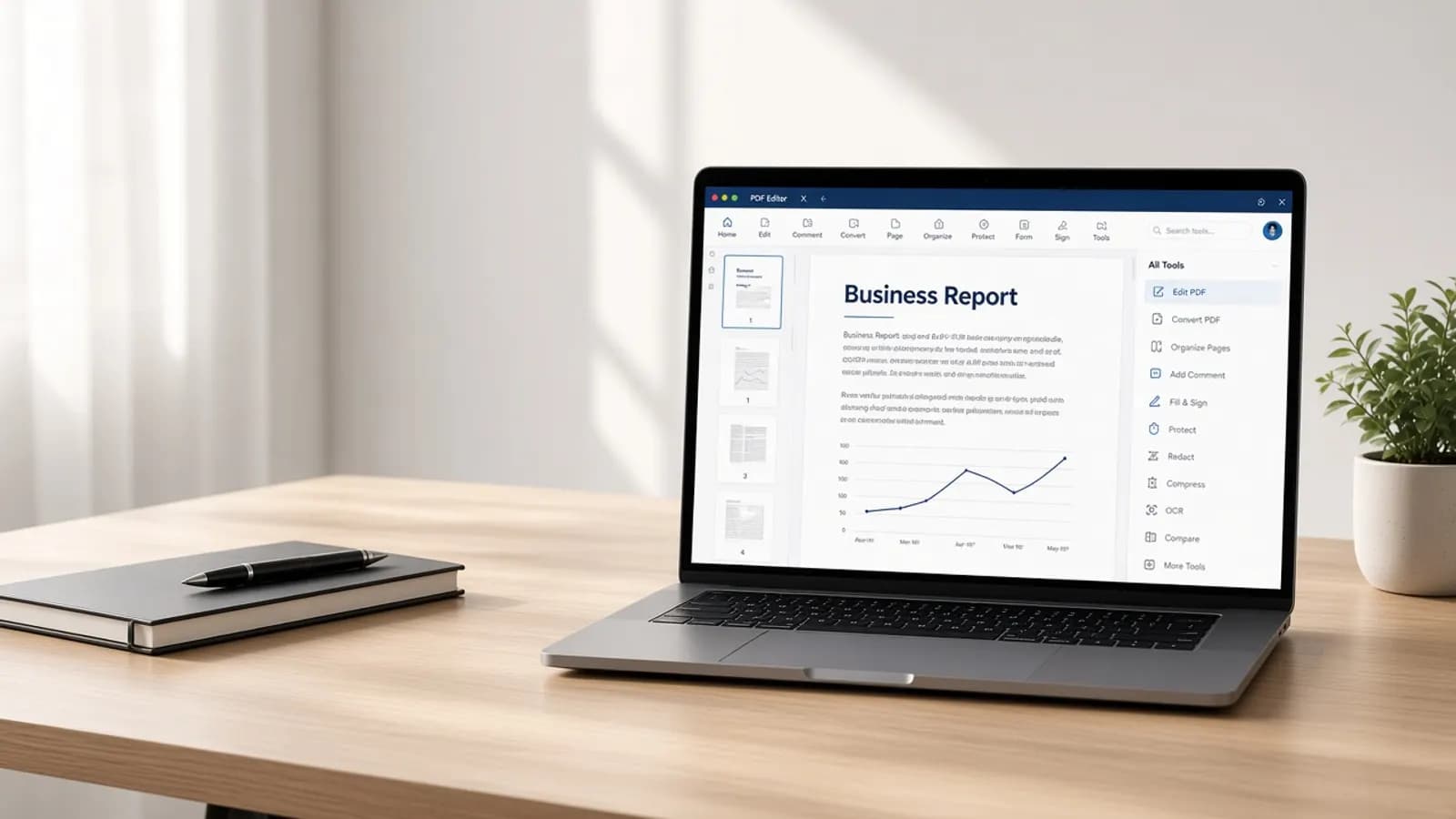
Reliable in-place editing is often more important than a long list of unused tools. If everyday corrections require exporting to another format, the editor will not stay in the workflow.
Working with pages and document structure
Business PDFs are frequently assembled from several sources. A contract may need an appendix moved, a cover page added, or unused pages removed before it is sent.
- Reorder, rotate, insert, extract or delete pages without starting over.
- Combine related files or split a large pack into smaller documents.
- Keep page size, orientation and numbering understandable after changes.
Page tools matter most when documents are assembled by more than one person. A clear page view makes it easier to check that the final file is complete before it is shared.
Reviewing and preparing documents
Many PDFs are review copies before they become final records. Comments, highlights and simple markup help colleagues point to a clause or figure without rewriting the file.
Preparation also includes practical checks: is the document readable, are pages in the right order, and has anything temporary been left in? An editor that supports review and cleanup in one place reduces the chance that a draft version is sent as the finished file.
Forms and everyday document tasks
Not every business PDF is a long report. Teams also fill forms, add a signature field, flatten a completed copy, compress a large file for email, or convert a document so someone else can open it.
When you compare products, look at the tasks people already do each week. Form filling, printing, compressing and converting are often more relevant than specialized features that only appear in a brochure.
Security and privacy considerations
Document tools sit close to information that may be confidential. When you evaluate a PDF editor, ask how files are opened, stored and processed on the computer, and what the product documentation says about local versus online handling.
Password options, permission settings and careful sharing habits can reduce accidental exposure. They do not replace organizational policy, and no editor can make a document risk-free once it has been sent. Treat security features as one part of a broader process, not as a guarantee.
Windows and macOS considerations
Many organizations use both Windows and macOS. If a document moves between those environments, the editor should behave in a familiar way on each platform so people are not maintaining two different workflows.
Check that the capabilities you need — editing, page organization, review and export — are available on the desktops your team actually uses. Platform notes belong in the product information, not in assumptions about what every operating system can do.
Questions teams should ask before selecting a PDF editor
- Which document tasks happen every week, and which happen only occasionally?
- Do people need to edit existing text, or mainly review, organize and share files?
- Will more than one team assemble or comment on the same PDF?
- Which Windows and macOS versions are in regular use?
- How should confidential files be stored and shared after they leave the editor?
- Is the product information clear about local desktop use and any online features?
Conclusion
The right PDF editor for business work is the one that matches the documents your team already handles. Focus on editing, page structure, review, everyday tasks and a clear approach to privacy. Feature lists are easier to compare once those workflow questions are answered.
If you want to see how Europe Digital approaches desktop PDF editing for everyday business documents, start with the product page.